If you have ever called Intuit support about QuickBooks, TurboTax or ProConnect, the agent may have asked you to visit glance.intuit.com. Many people may never have heard of Glance Intuit and could be wondering whether it is safe and legitimate. Find out what Glance Intuit is, how the glance.intuit.com remote session works, how to download glance.intuit.com and join, and how to avoid scammers with the help of this guide.
Glance Intuit is a screen-sharing software that allows Intuit support agents to remotely view customers screens, helping them troubleshoot issues and resolve problems faster.
What Is Glance Intuit?
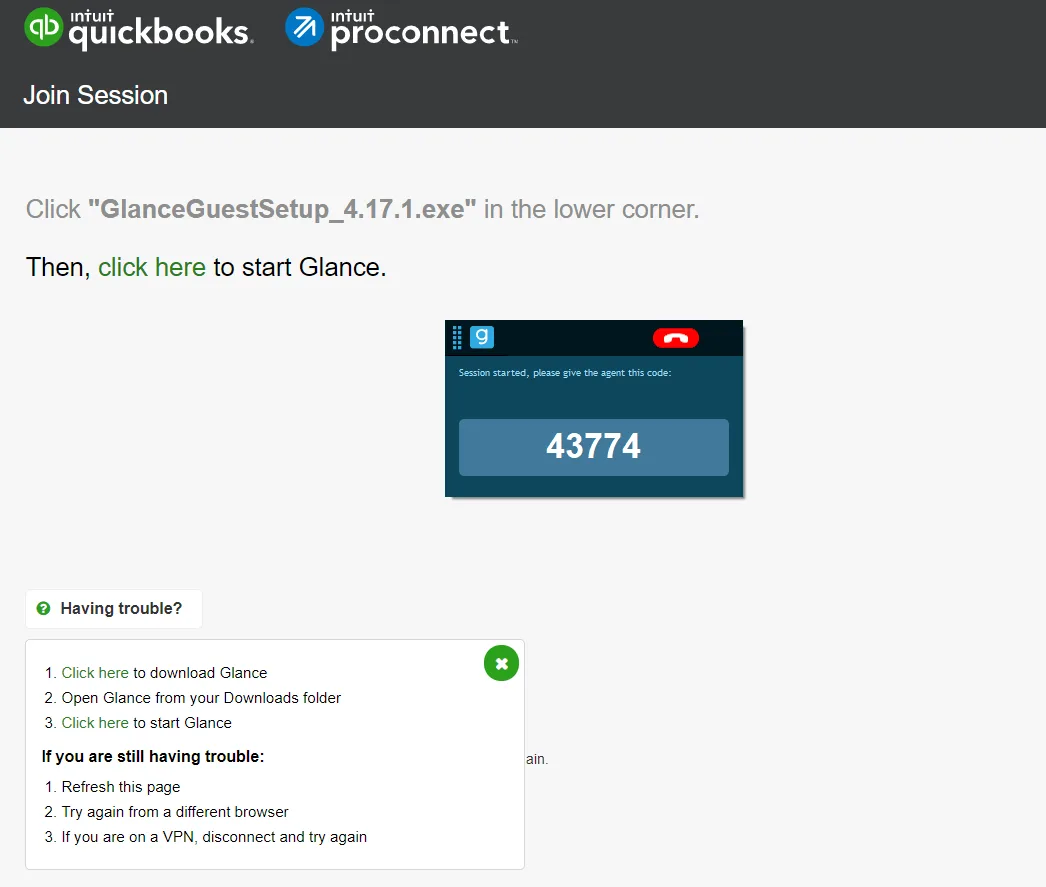
Glance Intuit is a remote screen-sharing service that Intuit support teams use to help customers. The technology comes from Glance Networks, and Intuit uses it so a support specialist can see your screen while you work in QuickBooks, TurboTax or ProConnect Tax.
So if you are asking “is Glance Intuit a remote desktop?”, the answer is: not exactly. It is mainly a screen-sharing tool. The agent sees what you see, which is much faster than describing an error message over the phone. What the agent is able to do on your computer hinges on the permissions you grant while the session is running.
A Quick Look at Glance Networks
Glance Networks is a completely independent firm which aims to build screen-sharing and visual engagement software crafted specifically for customer service teams. Many businesses lean on this technology, letting agents see a customer’s screen as they offer support. Intuit is among the companies that put this tool to use.
That’s why, when people search for “glance intuit,” they’re usually after the particular version of this tool that Intuit’s support team relies on. his also explains why the web address sits on an Intuit domain while the software behind it is made by another company.
Why Intuit Uses Glance for Remote Help
Accounting and tax software problems are hard to explain. Lines such as “the report looks wrong” or “I can’t find the setting” turn into lengthy calls and a lot of guesswork. With glance.intuit.com remote access, the agent sees the same screen, spots the problem and walks you through the fix. Common uses include:
- Setting up a new QuickBooks company file
- Fixing bank feed or reconciliation issues
- Troubleshooting payroll or direct deposit setup
- Helping with TurboTax installation or e-filing questions
- Guiding ProConnect Tax users through workflows
Glance Intuit vs Other Remote Support Tools

People often compare Glance with tools like TeamViewer, AnyDesk or Windows Quick Assist. The main difference is purpose. Those tools are general remote desktop programs, and they are often used to take full control of another computer. As Intuit envisions it, Glance revolves around guided support: the agent observes your screen and walks you through each step along the way. That approach keeps you in charge of your own computer and suits accounting software, where the important thing is to see the exact screen and error message you are looking at. It also means you should not be asked to install any other remote tool during an Intuit support session.
How Glance Intuit Remote Access Works?

The process is simple:
- An Intuit support agent tells you to open glance.intuit.com.
- You download and run the small Glance Guest program, or use the browser option if one is offered.
- A session code might be supplied by the agent or shown by the software.
- The code connects your screen to the agent.
- You’re free to end the session at any moment you decide, and the agent can see what appears on your screen.
The same flow answers many common searches, such as glance.intuit.com get code, glance.intuit.com join session and glance intuit remote start session. Which code you use depends on the agent’s instructions.
What to Prepare Before Your Session?
A little preparation makes the session faster and safer. Before you connect:
- Make certain you write down your support case number, or otherwise record the exact error message that appears on your screen.
- Open the Intuit product you need help with, such as QuickBooks or TurboTax, so it is ready.
- Close email, banking tabs, messaging apps and any files with personal or client information.
- Make sure that your laptop is nicely plugged in and you are having no issue related to your internet connection.
Glance.intuit.com Download: Step by Step

Use only the official address. Type glance.intuit.com into your browser yourself instead of clicking a link from an email or a search ad. Then:
- Go to the page: The download usually starts on its own. If it doesn’t, refresh the page.
- Find the file: On Windows it goes to your Downloads folder. The file is usually named something like GlanceGuestSetup, followed by a version number (for example, GlanceGuestSetup_4.17.1.exe). The version number changes over time, so yours may differ.
- Run it: Double-click the file. Whenever Windows prompts you to confirm whether changes should be allowed, go ahead and select Yes, provided that the download you began came from the official website.
- Wait for setup: It is a small program, and installation takes only a few moments.
- Start the session: Open Glance Guest and follow the on-screen prompts, or enter the code your agent gave you.
How to Get a Code and Join a Session?

Two things confuse people most: who generates the code, and where to type it.
- The agent gives you a code: The Glance website or the Glance Guest window both include session fields where you can enter it; after that, you can hit confirm.
- Your screen generates a code: Read it to the agent over the phone or chat. Only give it to an agent you contacted, or one who is working on a support case you opened.
After you’re connected, a Glance window or indicator ought to appear, confirming that the session is live. Should it fail to show up, chances are you aren’t connected.
What Happens During a Glance Session?
After you complete the basics, your session will go live. Now the agent can see what is on your screen and guide you with instructions. Expect to do most of the clicking yourself. Be prepared for a few things the agent will guide you to do, like opening a report or going to a menu. Good agents explain what they are doing and why. A few habits help the session go smoothly:
- Move slowly and tell the agent when something changes on your screen.
- Ask questions if you don’t understand a step.
- Take notes so you can repeat the fix later.
Most sessions are short, especially for setup questions. Tricky problems, like repairing data files or mistakes on a tax return, could take more time or call for a second visit.
Glance.intuit.com Login: Do You Need an Account?

Many people search for glance.intuit.com login and expect a username and password. As a customer, you usually don’t need one. You join with a session code and Glance Guest. Intuit’s support staff handle the host side. If a page asks for your bank details, QuickBooks password or card number just to “log in” to Glance, close it.
Fixing Common Glance Intuit Problems
Download won’t start: Refresh the page, try Chrome, Edge or Firefox, and temporarily pause ad blockers. If you use a VPN, turn it off and reload.
Windows blocks the installer: Right-click the file and select Properties. In some cases when your organization manages your computer, so you need a authorization from your IT team before installing anything.
The code doesn’t work: Codes usually expire quickly. Ask the agent for a new one, and make sure you aren’t confusing the letter O with zero.
The session connects but looks frozen: Be certain to shut down any other programs that are hogging resources, verify that your internet connection is working, and then restart Glance Guest.
You can’t find the window: Check the taskbar, or look in the system tray near the clock.
Should problems keep cropping up, ask the agent whether a browser-based option exists or if there’s some other route to connect.
Is Glance Intuit Safe? Avoid Remote Support Scams
Remote screen-sharing tools are legitimate, but scammers also pretend to be tech support to get access to people’s computers. The safest habits are:
- Start the contact yourself: Use Intuit’s official support channels, not a phone number from a pop-up, email or search ad.
- Never accept unsolicited help: Intuit doesn’t call people out of the blue to say their computer has a virus.
- Type the address yourself: Look-alike domains exist, so don’t trust any site that merely resembles it. Watch for slightly different spellings such as glanceintuit.com, glance.intuit,com or extra words appended to the address.
- Don’t share sensitive details by accident: Never read out passwords, one-time codes, bank logins or card numbers. Close unrelated windows and private documents before starting.
- Watch what’s on screen: If the agent pulls up things you never anticipated or requests that you purchase gift cards, shut the session down right away.
- Don’t pay unfamiliar third parties: Legitimate Intuit support doesn’t ask for payment in gift cards or cryptocurrency.
If you suspect that you may have handed access over to a scammer, the first thing to do is cut yourself off from the internet, then run a thorough security scan on your device. Report it to Intuit as well.
A Note About Third-Party Guide Sites
Look up glance intuit and you’ll find plenty of guide sites walking you through the download process. A few of them get it right, yet many are standalone sites with no ties to Intuit or Glance Networks, and a handful even contain errors. A widely read guide paints Glance as accounting software with its own pricing tiers a description that simply doesn’t hold up. Treat these guides as background reading. Always get the software from the official glance.intuit.com page, and take session instructions from the Intuit support agent you are actually talking to.
Frequently Asked Questions
What is glance.intuit.com?
Glance.intuit.com is the web address Intuit support uses to connect customers to Glance, the screen-sharing service for remote help.
Is Glance Intuit the same as Glance Guest?
Glance Guest is the small program customers run to join the session. “Glance Intuit” refers to Glance as used by Intuit support.
Is glance.intuit.com free?
Customers aren’t charged for the Glance download or for joining a session.
Does the agent control my computer?
Glance sessions are built around screen sharing. Don’t grant any additional access unless you understand what you are allowing and trust the agent.
Can I use it for QuickBooks Desktop and QuickBooks Online?
Yes. Support agents use it for QuickBooks, ProConnect and TurboTax issues, depending on the case.
What if I typed the address wrong, such as “glance.intuit.comnet” or “glance,intuit.com”?
Those are typos and may lead to the wrong site. Retype it as glance.intuit.com.
How do I remove Glance Guest?
On Windows, open Settings, go to Apps, find Glance Guest and choose Uninstall.
Is “www.glance.intuit.com” the same as glance.intuit.com?
Normally, both of them will lead you to the very same service, yet the safest route is to type the shorter address in directly yourself.
Can I use Glance Intuit on a phone or tablet?
If you only have a phone or tablet, tell the agent, and they can suggest another way to help.
Can the agent see my other open programs?
When you share your screen, whatever is visible on it could be viewed by the agent. This is why you should close unrelated apps, tabs and documents before you begin.
What should I do if I think the agent is not from Intuit?
End the session straight away, close Glance Guest, and contact Intuit through its official website or the number printed on your account or product materials.
Final Thoughts
Glance Intuit is a convenient way to get real-time help with QuickBooks, TurboTax and ProConnect problems. Download only from the official site, join only sessions you started, and end the session as soon as the work is done. That way you get the speed of screen sharing without the risk.